FindObjectsWithWebcam
This tutorial will show how to add an object using your webcam. Note that version 0.4 is used here.
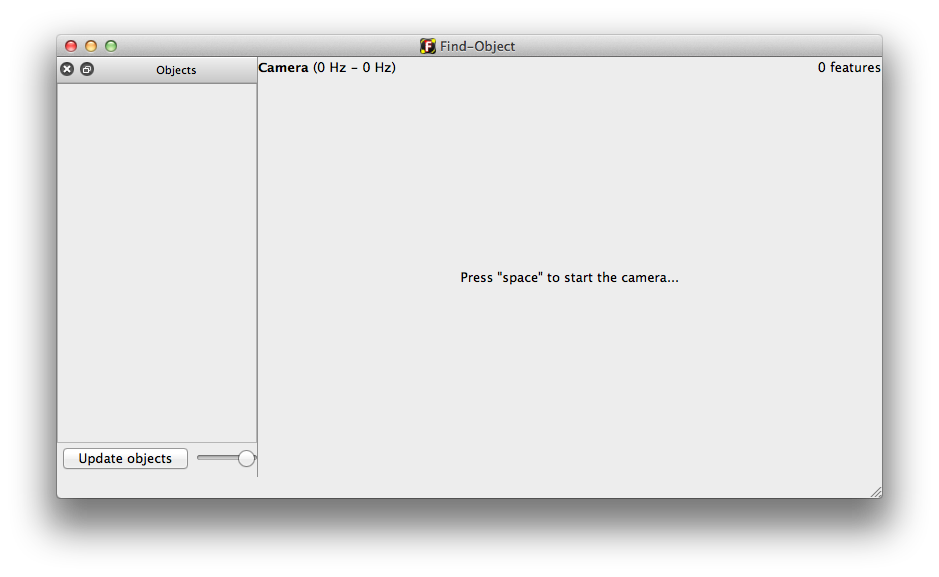
- Open Find-Object application.
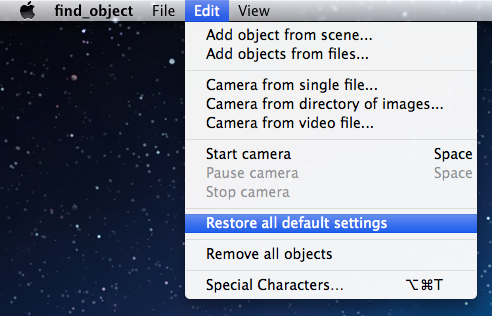
- If it is the first use of Find-Object, go to next step; otherwise, restore all default settings (menu "Edit->Restore all default settings")
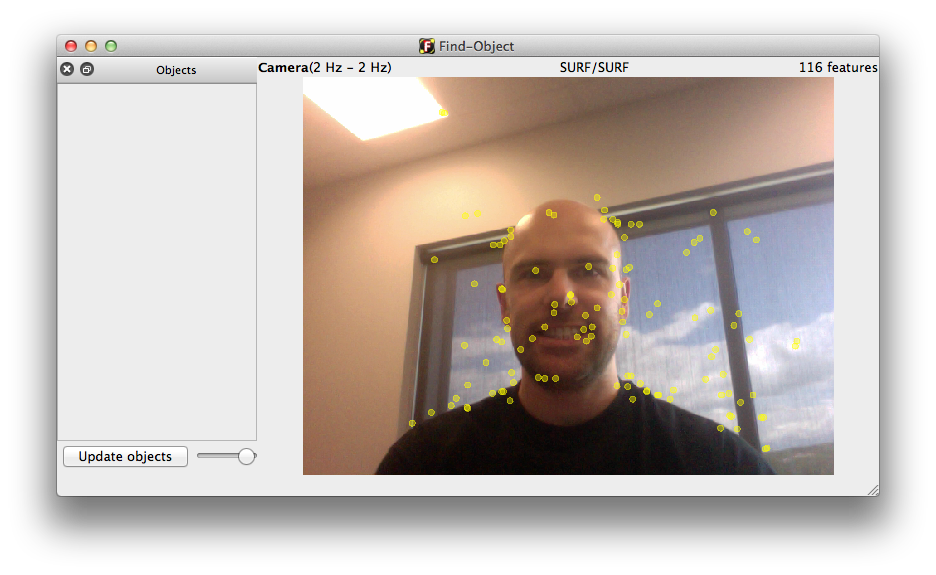
- Press space to start the webcam. Note that by default, the view is mirrored (you can change this with a right-click on the scene or by changing the parameter "General/mirrorView" using menu "View->parameters").
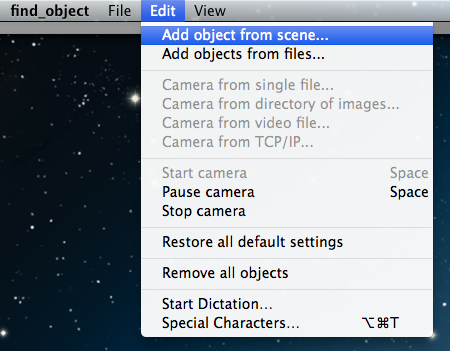
- Open "Edit" menu and select "Add object from scene...".
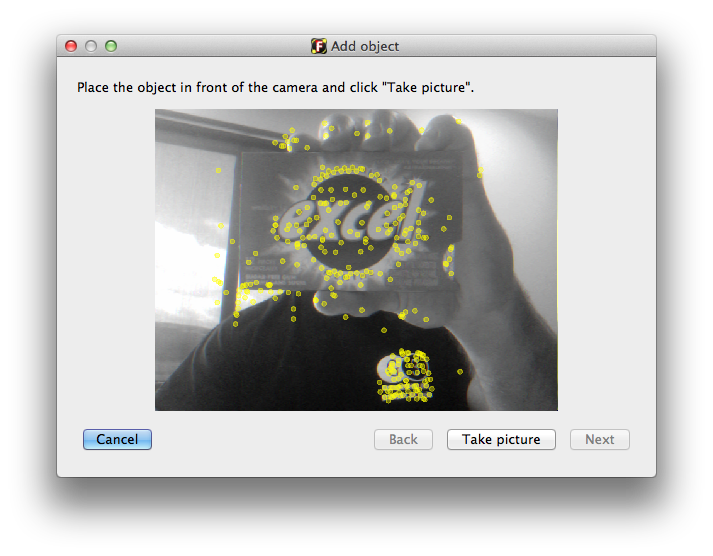
- Place an object in front of the camera and press "Take picture".
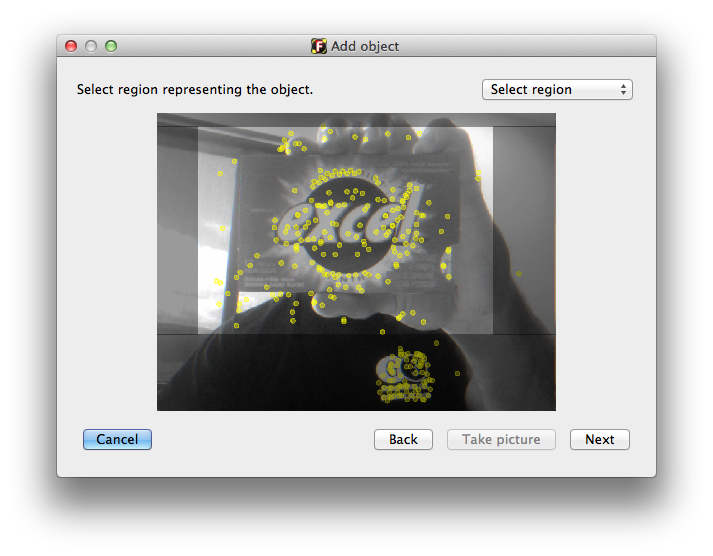
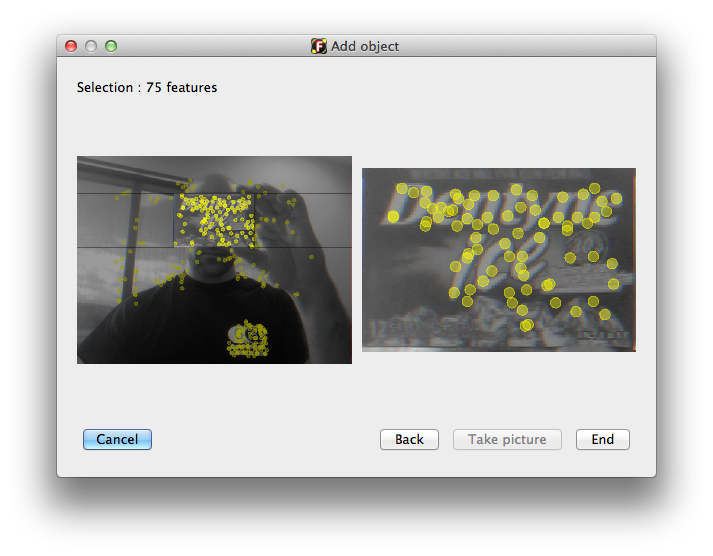
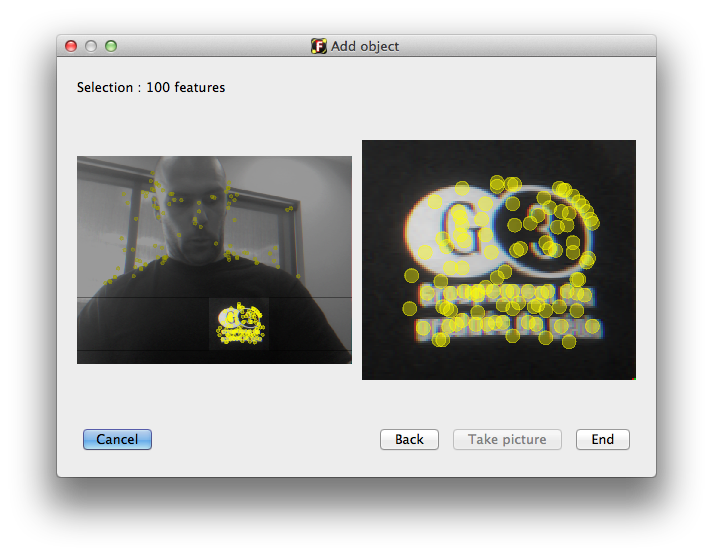
- Select the region representing the object.
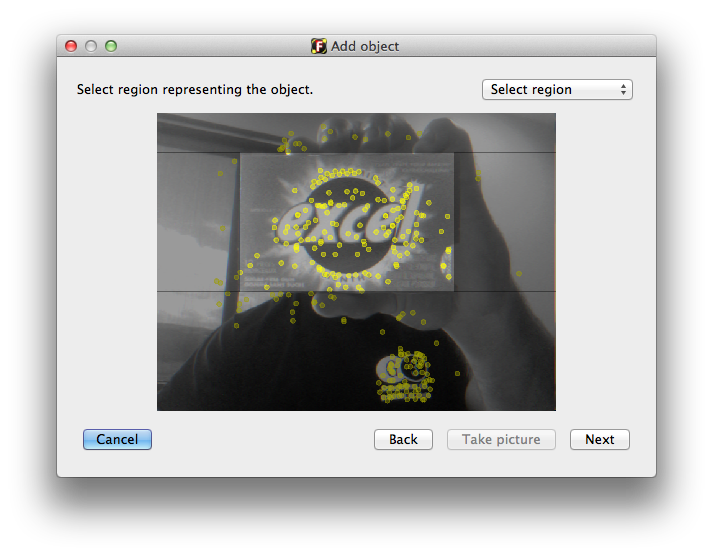
- Press next to verify your selection. Then press "End".
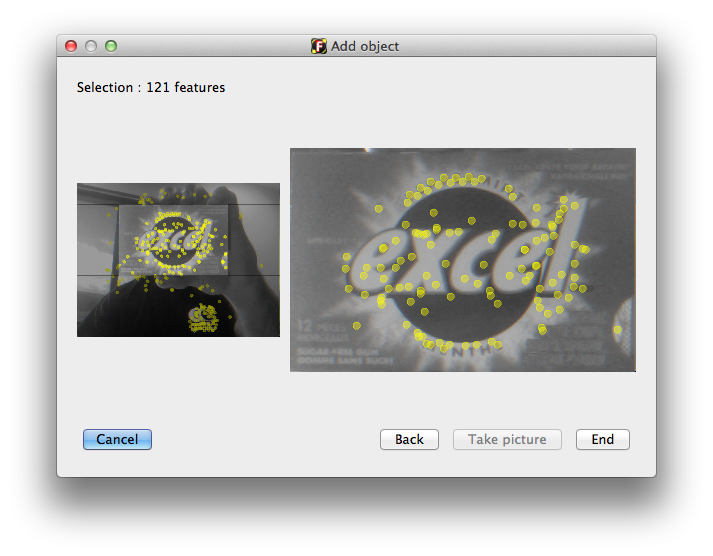
- Back to main window, you should see the object in the side pane.
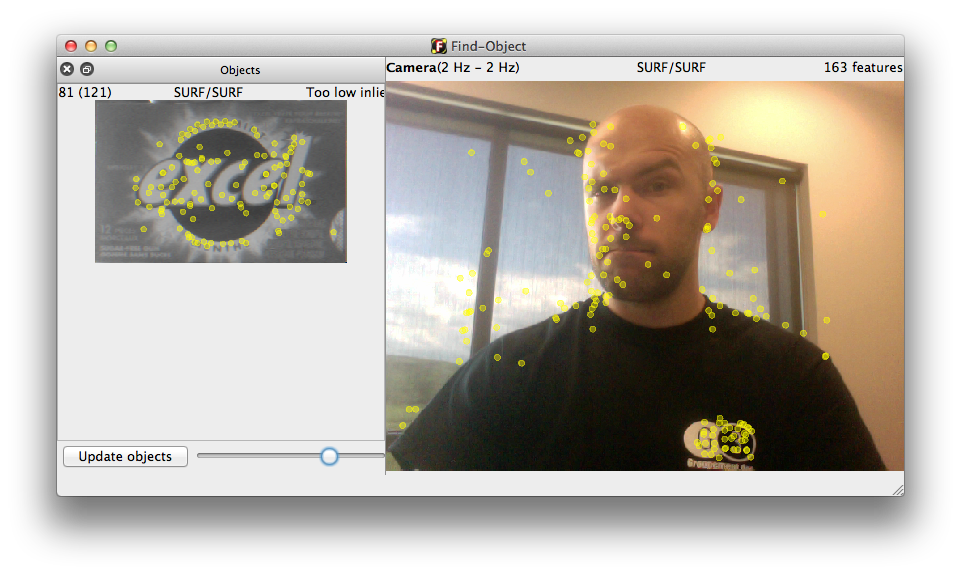
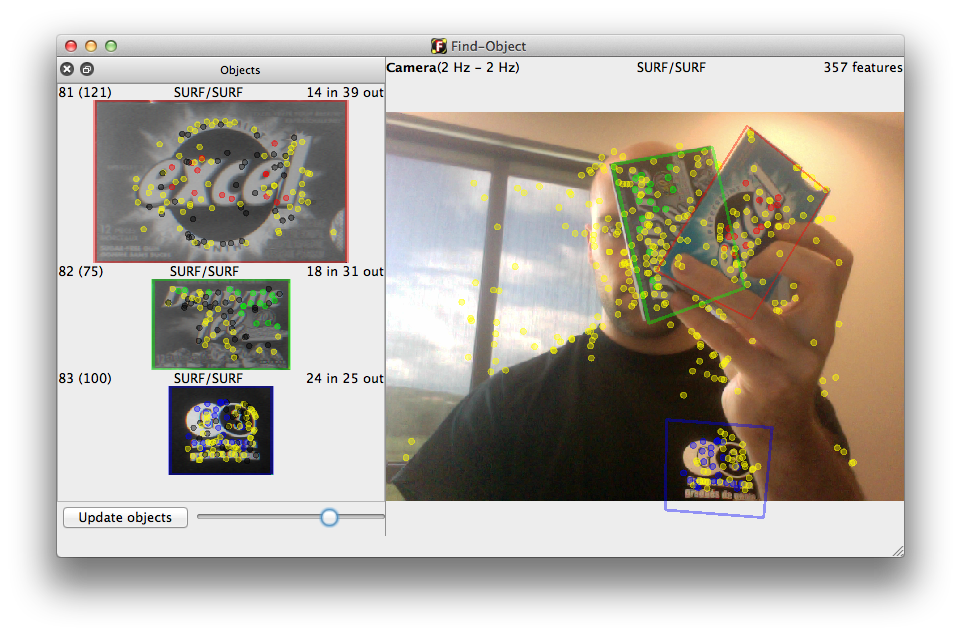
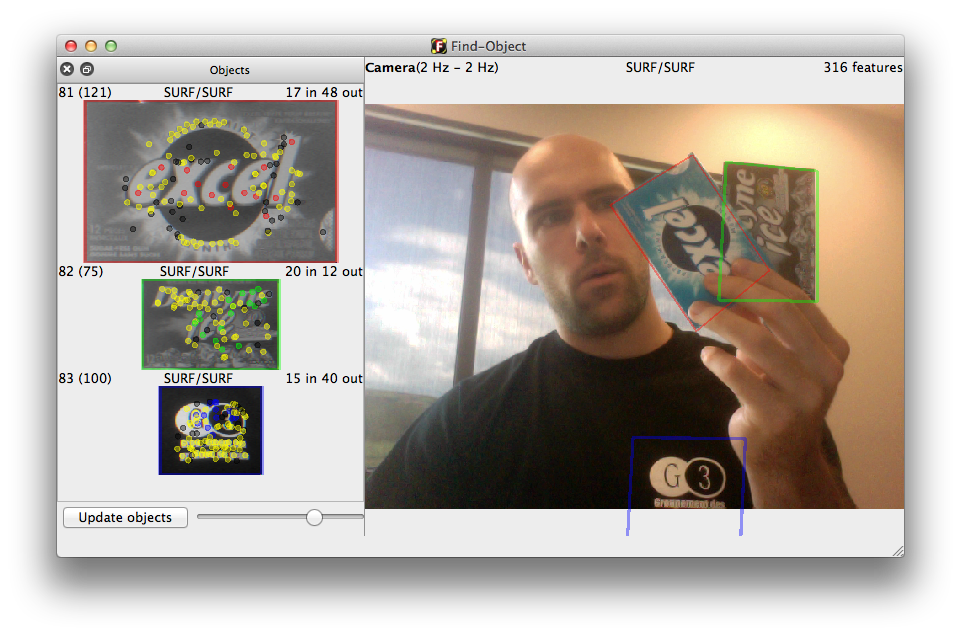
- Put your object back in front of the camera to see the detection.
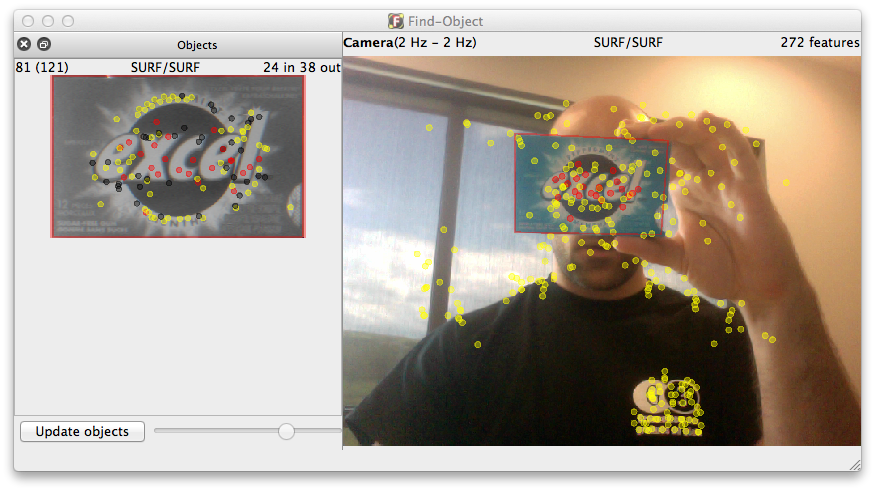
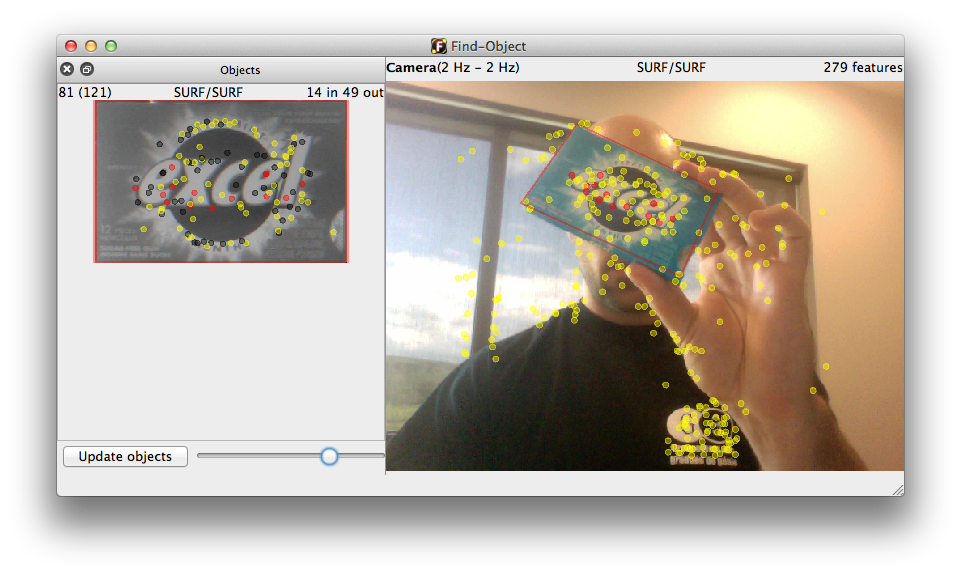
- If the scene doesn't have many features, there may have some bad detections like below. If your scene doesn't contain many features, try General/InvertedSearch mode. For the next, this mode is used.
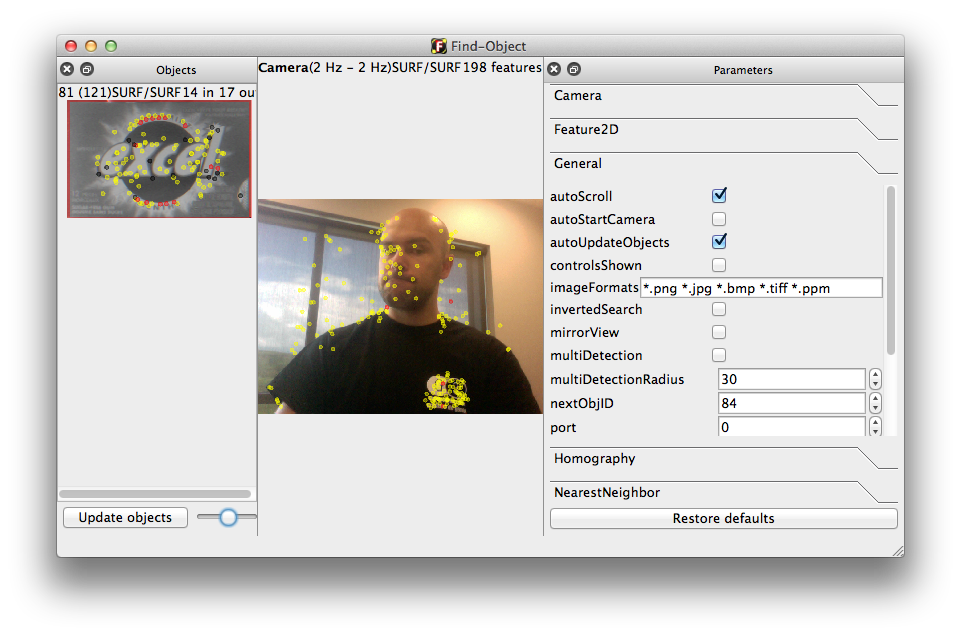
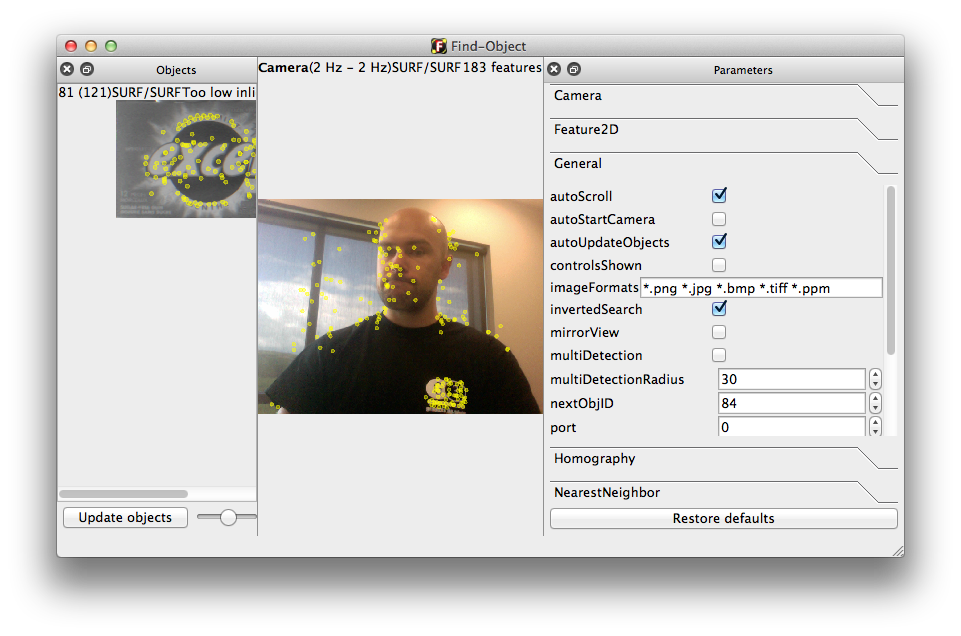
- You can add more objects if you want.
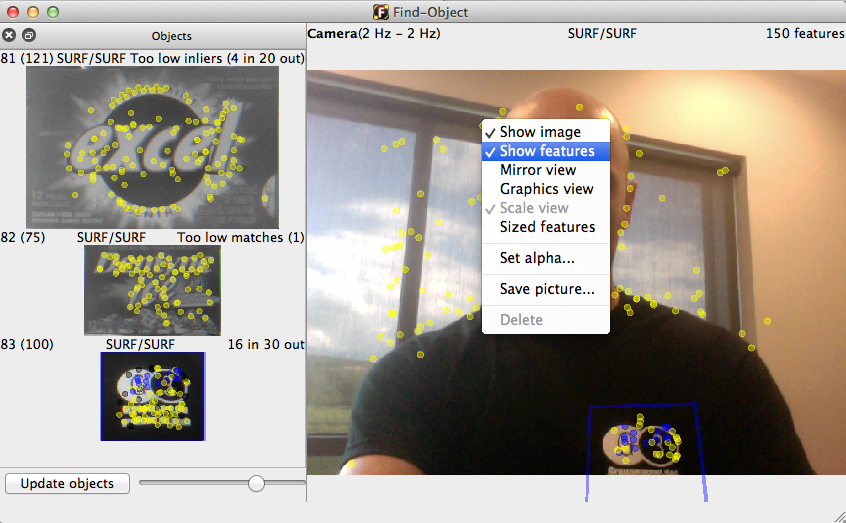
- You can also right-click on the camera view and uncheck "Show features".
Find-Object 0.4.3 required
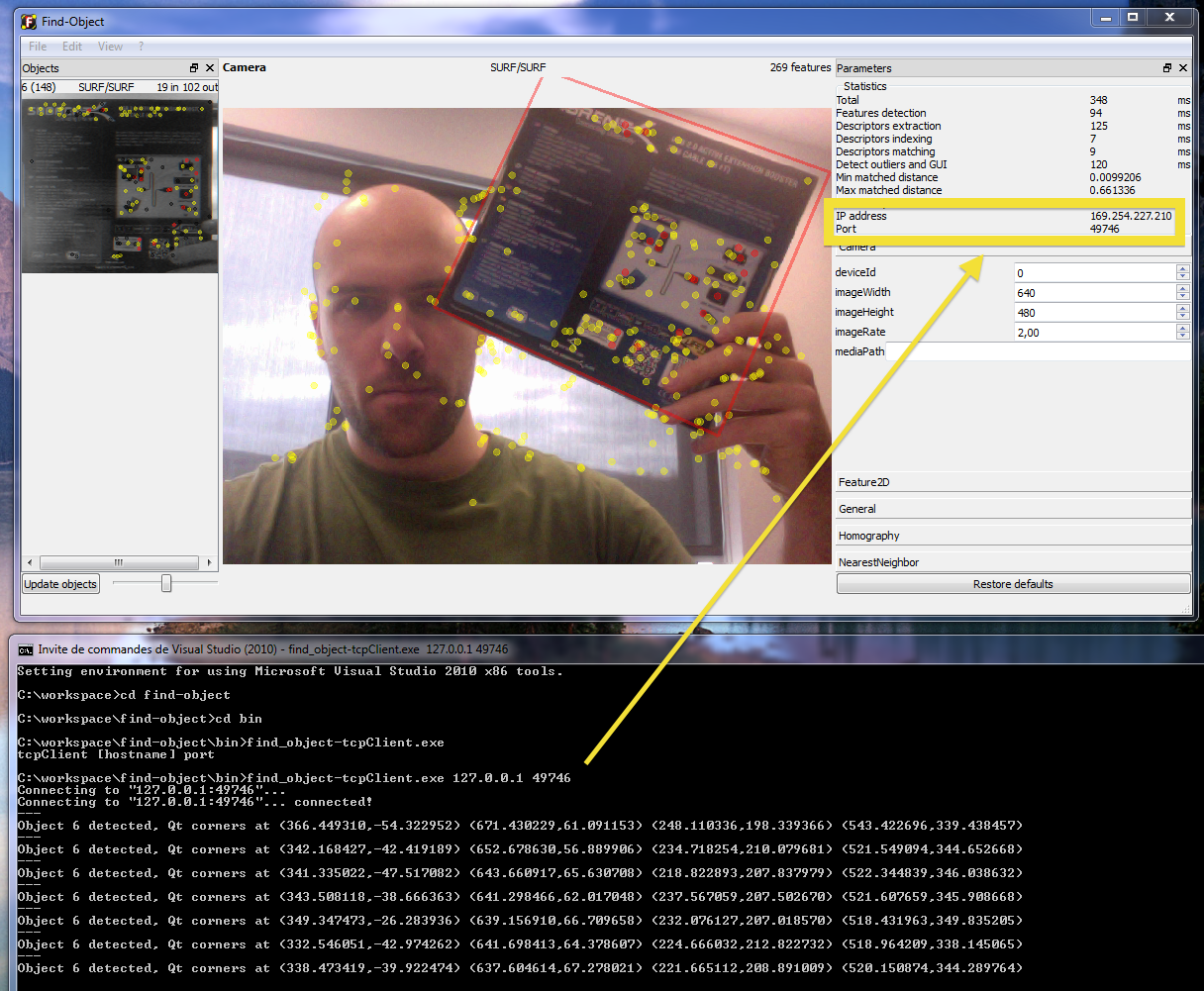
Some information about objects detected like ID and position are sent over TCP on a port.
- Publish detected objects format:
[uint16: Message size in bytes]
[uint32: Number of detected objects]

First object detected:
[int32: Object's ID]

QSize (Object size):
[int32: Width in pixels]
[int32: Height in pixels]

QTransform (Homography transform):
[float64: H11]
[float64: H12]
[float64: H13]
[float64: H21]
[float64: H22]
[float64: H23]
[float64: H31]
[float64: H32]
[float64: H33]

QString (File name):
[uint32: string length, 0xFFFFFFFF if null]
[string data in UTF-16 format, nothing if string is null]

[int32: inliers count]
[int32: outliers count]

Then objects 2, 3, 4...
-
Example handling the message (TcpClient.cpp, TcpClient.h and main.cpp). The Qt Data Types serialization page can be also useful to understand the DetectionInfo object serialization.
-
Note that parameter
Homography/homographyComputedmust be true (default true) in order to publish the topic. -
Parameter
General/mirrorViewwould be false in order to visualize correctly the homography values returned. -
You can set manually a port, see parameter
General/port. -
On ROS, a topic named "/objects" containing the same data is sent. See here.